The field manual
Every feature,
first lyric to final report.
How to take a song through StudioHand — from first launch to the finished report. Whether you write the songs or record them, it is the same library.
01First launch
StudioHand opens on a choice: Start fresh (an empty studio, yours from the first take) or Explore the sample studio — a fully populated fictional room, Lowlight Audio, with sessions in every stage of life. The sample is the fastest way to see what a lived-in log looks like; clear it any time from Settings → Sample data.
Then pick your mode: Engineer leads with active and upcoming sessions; Musician leads with the songs in progress. Both share one library — the same songs, sessions, gear and contacts — so the mode only changes what greets you first. Switch any time in Settings → Mode.
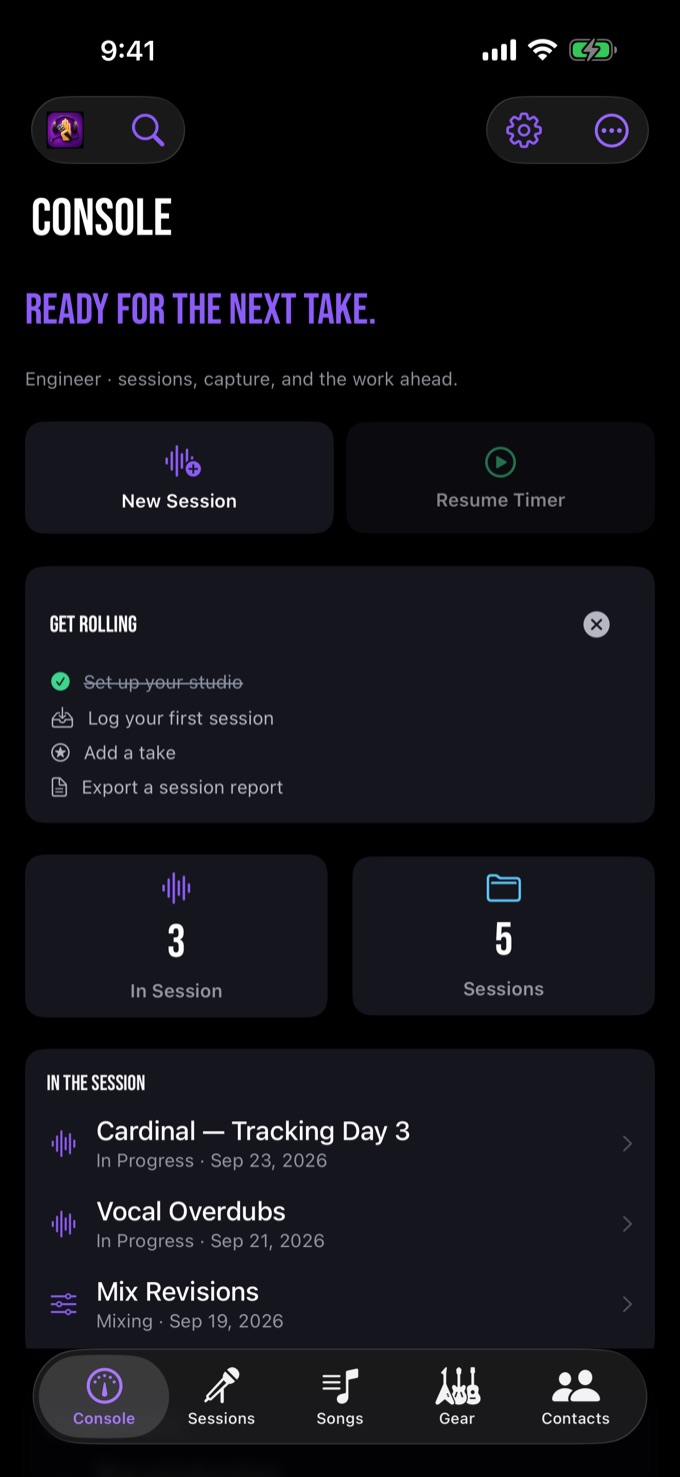
Console is home base: what's in motion, what's coming, and one-tap quick actions. The five places you work sit along the bottom — Console, Sessions, Songs, Gear, Contacts — and everything else (rooms, software, releases, templates, tags) lives under More Tools.
02Sessions — the spine
A session is a day of work. Tap + anywhere to create one.
Songs are their own records, kept in Songs and linked to the sessions that worked on them — so a song can run across a tracking day in March and a mix revision in June while staying one song, and deleting a session never deletes the song. Each session keeps its own running order, work notes and progress for the songs on it.
When you create a session you give it a client, a project, and the technical details everyone asks about at 11pm — sample rate, bit depth, DAW, room.
- Tap + → enter client and project name
- Create starts the log; Create & Start also starts the billable clock
- Add songs from the field at the bottom of the session
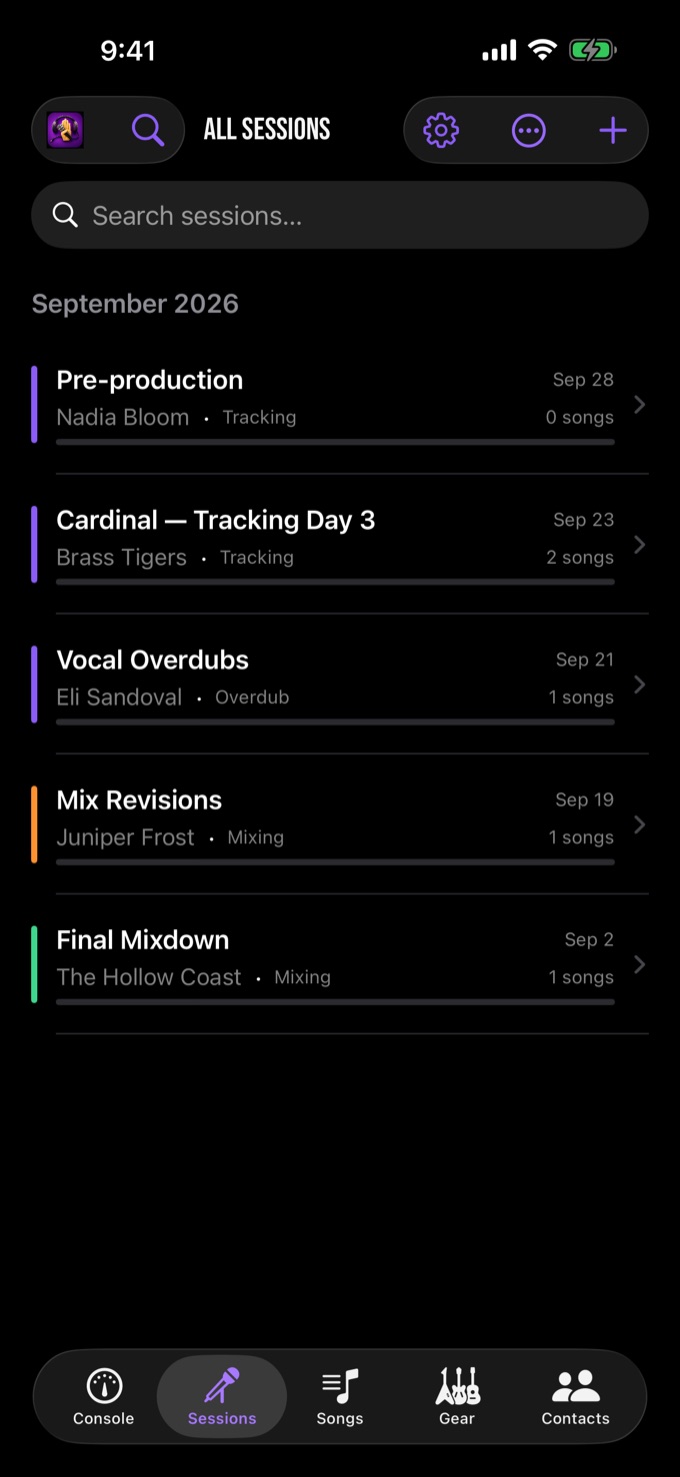
The Sessions tab is the master log, grouped by month with status at a glance — and the session's ⋯ menu holds notes, photos, tags and the PDF report.
03Takes & the circled keeper
Open a song and you're on the take sheet — the heart of the app. New Take logs the next number; everything else happens inline, one thumb, while the band resets:
- Rate it: Keep / Maybe / Scratch / Printed, from the coloured pill
- Star the contenders (tap a star; tap again to clear)
- Flag keepers with the bookmark to build a shortlist
- Circle the one — double-tap the take number. The green ring is the room-wide answer to "which take was it?"
Each take carries a title, notes, a duration, section and locate fields — and a voice memo, recorded straight from the talkback position.
Console tip: swipe a take row right to circle, left to delete. Deleting asks first — a take takes its ratings and memo with it.
04Cues — punch spots, stamped
The Cues tab is the punch list. Type a time by hand, or — the working move — tap the clock button to stamp the cue straight off the running session timer, then describe it: "punch trumpet pickup into 2nd chorus."
Cues carry categories (verse, chorus, solo, punch-in) so the list reads like a map of the song. They land on the session report too — tomorrow's you knows exactly where tonight's you left off.
05Lyrics & chord charts
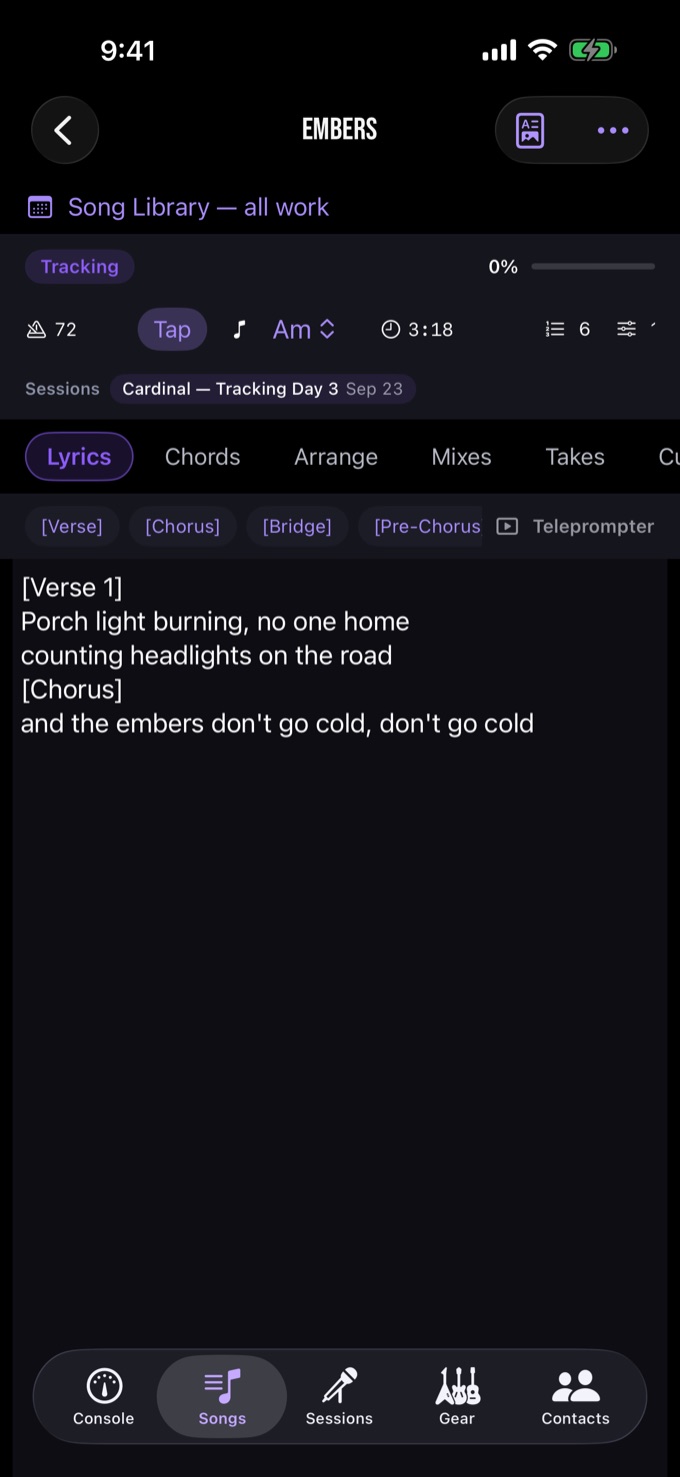
The Lyrics tab holds the words with section markers — visible from the console when the vocalist asks "what's the second line again?"
Chords builds a Nashville-style chart section by section: name it (Verse, Bridge), type the changes (Am F C G), add performance notes. The song header carries tempo and key — with a tap-tempo button, because nobody knows the BPM until you tap it. The Live Bar's tuner analyses pitch on-device when you need a quick reference.
06Arrangement & track sheets
Arrange maps the song's structure — Intro, Verse, Chorus, Bridge — with bars, instrumentation and production notes per section, each with a status so you can see what's tracked and what's still a sketch.
Tracks is the input list reborn: every track with its source, mic and preamp — Lead Vocal: U87 → Neve 1073 — the recall information that saves next week's setup hour. Apply a track template to lay in a standard band setup in one tap.
Beside them sit the deeper recall tools you can switch on or off: headphone mixes, outboard and plugin recall, the patchbay, and the comp builder for assembling a keeper from pieces.
07The timer — a clock you can bill from
Start it from the session when the client walks in — Start Session Timer sits right there — and the running clock follows you across the app as a docked strip you can read from across the room: working time and break time tracked separately. Tap Take Break at dinner, tap again when you're back. It also appears on the Lock Screen and, on supported iPhones, the Dynamic Island.
The clock saves recovery checkpoints and offers recovery when a session is interrupted. Review the recovered time before billing it. Stop the session and the wrap-up flow closes the night: report, status, carry-forward notes.
Why it matters: at $150/hr, a lost hour of "wait, when did we start?" is real money. The clock is the invoice's witness.
08Photos & notes
Every session and song takes reference photos — mic placement, patch points, the outboard settings you'll need to recall in three weeks. Capture a photo or select one with the system picker, which hands the app only the items you choose. Images stay on your device unless you export or share them.
Session notes are the running margin of the night: timestamped entries for anything that isn't a take — "snare buzz fixed, retuned," "client wants the ballad brighter."
09Gear, rooms & software
Gear keeps the room itself: an inventory with type, location, serials and notes for every mic, pre and compressor you own, plus maintenance records for the ones that need them. Under More Tools sit Rooms for multi-space studios and Software & Subscriptions for the plugin licences and renewal dates that otherwise live in your email.
Gear connects back to the work: track sheets reference inventory items, so "which 1073 did we use?" has an answer. Contacts keeps the players, clients and techs, with the sessions they were on.
10Releases, the vault & analytics
Releases gather finished songs into a record with a running order, sides and credits. One song can sit on two releases, and in two places on the same one, because the running order lives on the link rather than the song.
The Vault is the catalogue of finished audio: import files, tag them master, mix, stem or instrumental, play them back inline through the waveform player, promote a mix to a master, and link them to a song or release.
Analytics reads the log back to you — sessions and hours per month, average session length, the people you record most, and what the software shelf costs each month. It measures time worked; it never claims to know what you earned.
11Search, tags & templates
The magnifier searches everything you've ever logged — sessions, songs, takes, notes, contacts, gear. "Which take did we circle on Cardinal?" is a two-second question. Searches can be saved and re-run.
Tags cut across sessions ("vocal day", "mix revision"); session templates spawn your standard setups — same client, same room, same technical defaults — in one tap. Checklists cover the things you always forget at load-in.
12Reports — hand them their paper
From a session's ⋯ menu → Export Report: a one-tap PDF with the songs, takes (keeper circled), cues, notes and the time log — the document you hand a client or drop in the project folder. A song's own song sheet prints the lyrics and chart for rehearsal or the live room.
Sessions and time logs also export as CSV for spreadsheets. Choose where each export is saved or shared.
13Backup & moving devices
Your library is local; exports, sharing and system device backups can create copies elsewhere. In Settings → Export & Backup, Export Backup with Media (JSON) includes up to 256 MB of linked media. Imports accept JSON files up to 512 MB. DAW project folders are not copied.
Settings → Library Safety → Full Store Checkpoints copies the native database and embedded attachments, but not audio files stored elsewhere.
A PDF or CSV report is not a full backup. Verify a backup and keep any external media before deleting or reinstalling the app. There is no automatic cloud sync — moving between devices means exporting and importing deliberately.
14Settings — shape it to your room
Mode switches the Engineer/Musician lens. Customize Features turns modules on and off — headphone-mix recalls, outboard recall, comp builder, checklists, releases, vault, analytics — so the app carries exactly what your workflow uses and nothing else. Set technical defaults (sample rate, bit depth, DAW) once and every new session inherits them.
Also here: the sample studio loader, sidebar customisation, reminders, and the end-of-session wrap-up.
Questions this page didn't answer?
The support page carries the FAQ, system requirements and permission explanations — or write to us directly.